To forward iPhone SMS to email, install Re:Text SMS Forwarder, tap "+" to add a destination, select Email Address, name it, enter your email (Gmail, Outlook, Yahoo, or any), tap Test Automation to verify, then save. Total time: about 2 minutes. Works with any email provider.
Forwarding text messages to email is the single most common SMS forwarding setup on iPhone. It's useful for backing up verification codes, accessing SMS from your laptop, keeping a searchable archive, or sharing texts with a team through a shared inbox.
iOS doesn't have a native "forward SMS to email" feature, so you need a small app that runs on your iPhone and does it automatically. In this guide, we'll walk you through the exact steps using Re:Text SMS Forwarder — with screenshots for every step.
Why forward SMS to email?
Different people forward SMS to email for different reasons. The most common ones:
- Search and archive — email is searchable and organized. SMS on iPhone isn't easily searchable across time.
- Access from any device — check your SMS on a laptop, tablet, or another phone by opening your inbox.
- Backup verification codes — never lose a 2FA code because you dropped your phone or upgraded devices.
- Shared team access — forward SMS to a shared Gmail account so multiple team members can respond.
- Cloud storage — Gmail stores SMS in your Google account, effectively giving you unlimited SMS archiving.
What you'll need
- An iPhone (iOS 15 or later)
- The Re:Text SMS Forwarder app (free tier includes 1 destination)
- Any email address — Gmail, Outlook, iCloud, Yahoo, ProtonMail, or your custom domain
- About 2 minutes
Step-by-step: forward iPhone SMS to email
Open Re:Text and add a destination
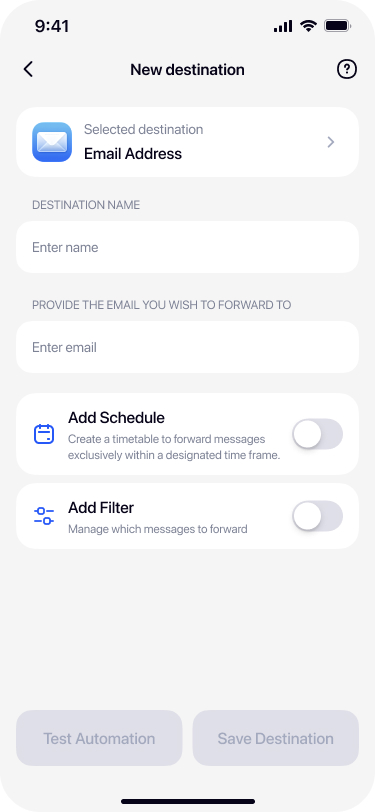
Open the Re:Text app. On the Destinations screen, tap the + button in the top-right corner.
A bottom sheet will appear with all 10 destination options. Tap Email Address.
Name your destination
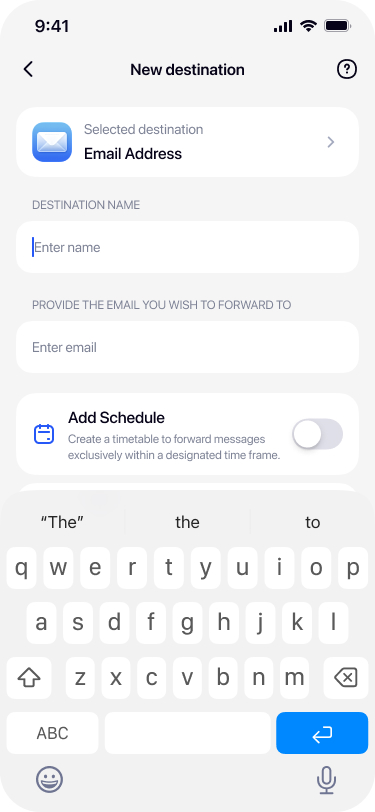
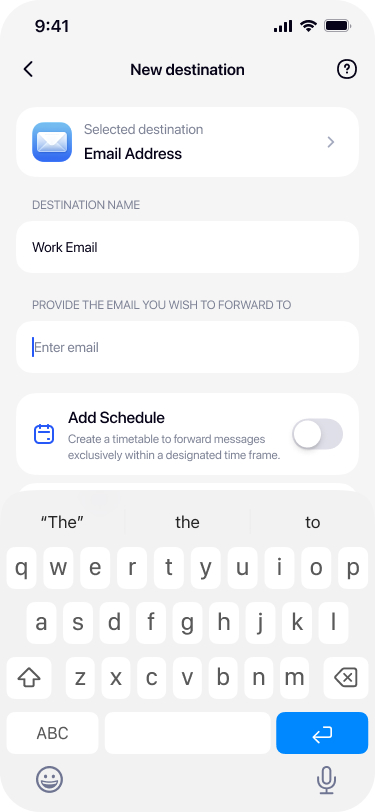
Give your destination a name you'll recognize later — for example Work Email, Backup Inbox, or Personal Gmail. This is especially useful when you set up multiple email destinations.
Enter the email address
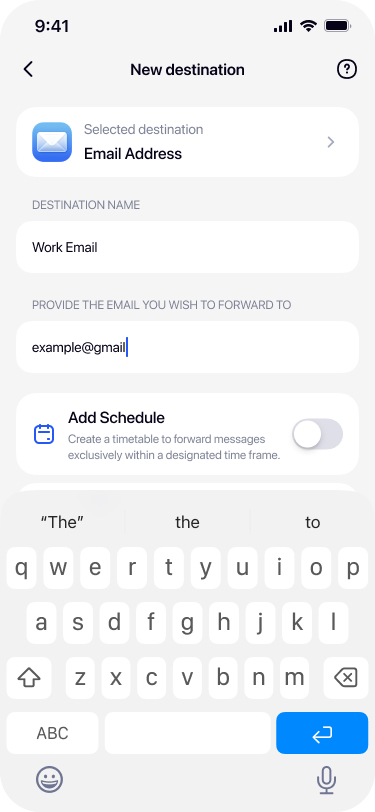
Type the email address where SMS should be forwarded. Any provider works:
- Gmail —
you@gmail.com - Outlook / Hotmail —
you@outlook.com - iCloud —
you@icloud.com - Yahoo —
you@yahoo.com - Custom domain —
you@yourcompany.com
You can add multiple email addresses by tapping + Add Email Address — forwarded SMS will go to all of them at once.
(Optional) Add filters or schedules
Before saving, you can optionally enable:
- Add Schedule — forward SMS only during specific hours or days. Useful for work-only forwarding.
- Add Filter — forward only messages that match keywords (e.g. "code", "OTP") or specific senders.
Skip this step if you want to forward everything, 24/7.
Test before you enable
Tap Test Automation at the bottom of the screen. Re:Text will send a test message to the email address you entered. Check your inbox — you should see it arrive within a few seconds.
Once you've confirmed it works, tap Save Destination.
What forwarded SMS looks like in your inbox
Each forwarded SMS arrives as a regular email with:
- A subject line indicating it's a forwarded message
- The sender's phone number or contact name
- The full SMS content in the email body
- The timestamp of when the SMS was received on your iPhone
You can create Gmail filters or Outlook rules to automatically label, star, or forward these emails further — for example, auto-labeling all forwarded SMS from your bank into a "Banking" folder.
Advanced: forward only verification codes to email
If you only want to forward OTP and 2FA codes (not every SMS), use the Filter feature:
- Enable Add Filter when setting up your Email destination.
- Add keyword filters:
code,OTP,verify,verification,login. - Save the destination.
Now only messages containing those keywords will be forwarded to your email. Marketing SMS, spam, and personal texts will stay on your phone only.
For a deeper walkthrough, see our guide: How to forward 2FA verification codes to email.
Troubleshooting: forwarded SMS not arriving in email
If test messages work but real SMS aren't arriving in your email, check these:
1. Your iPhone must be powered on
SMS forwarding requires your iPhone to receive the SMS first. If your phone is off or has no signal, nothing will be forwarded.
2. Check your email spam folder
Some email providers flag forwarded SMS as spam initially. Move one forwarded email to your inbox to train the filter.
3. Check that the destination is enabled
Open Re:Text and confirm the toggle on your Email destination is turned on. Disabled destinations won't forward messages.
4. Re-test using the Test Automation button
Open the destination and tap Test Automation again. If tests work but real SMS don't, check whether you set up filters that might be excluding your incoming messages.
Frequently asked questions
Can iPhone forward SMS to email by default?+
No. iOS does not have a built-in feature to forward carrier SMS to email. You need a third-party app like Re:Text SMS Forwarder to do this automatically.
Will forwarded SMS appear in my email inbox in real time?+
Yes. Re:Text forwards SMS to your email as soon as they arrive on your iPhone, provided the device is powered on and connected to the internet. Delivery is typically within a few seconds.
Can I forward only OTP or verification codes to email?+
Yes. Use the built-in filters to forward only messages containing keywords like "code", "OTP", "verify", or "login". You can also filter by specific senders.
Does Re:Text see my email content or attachments?+
No. Re:Text processes SMS on your device and sends the content directly to your email service. We do not store, log, or read your SMS or email content.
Can I forward to multiple email addresses at once?+
Yes. When creating an Email destination, tap "+ Add Email Address" to add as many recipients as you want. Every forwarded SMS will be sent to all of them.
Can I forward to a Gmail address I don't own (like a shared team inbox)?+
Yes. Re:Text simply sends emails to whatever address you enter. This works well for team inboxes like support@yourcompany.com or alerts@yourteam.com.
Does forwarding count against my carrier's SMS limits?+
No. Forwarding SMS to email uses your internet connection (Wi-Fi or cellular data), not SMS credits. You won't be charged for any SMS you receive — only for the mobile data used to send the email.
Is there a free version?+
Yes. The free version of Re:Text includes 1 destination with all core features (filters, schedules, Test Automation) and zero ads. If email forwarding is your only need, the free version is enough.
Ready to forward your first SMS to email?
Free forever with 1 destination. Setup takes 2 minutes.
Download on the App Store