To forward iPhone SMS to Telegram: install Re:Text, tap "+" and select Telegram, tap "Open our bot", send /start to @retext_sms_forwarder_bot, then save. No BotFather, no bot token, no chat ID. Total time: 30 seconds. It's the easiest Telegram SMS forwarding on iPhone.
If you've searched for how to forward SMS to Telegram before, you probably ran into a wall of technical setup: create a bot with @BotFather, copy a bot token, find your chat ID, paste everything into some app. It works, but it takes 5–10 minutes and most non-technical users give up halfway through.
Re:Text solves this differently. We built our own official Telegram bot — @retext_sms_forwarder_bot — so you don't have to. One tap opens it, one /start connects it, and you're done. No tokens, no IDs, no technical steps.
In this guide, we'll walk you through the full setup with screenshots.
Why forward SMS to Telegram?
Telegram is one of the best places to receive forwarded SMS because:
- Multi-device by default — Telegram syncs to your iPhone, Android, iPad, macOS, Windows, Linux, and web. Read SMS from anywhere.
- Free forever — no message limits, no ads, no attachments cap.
- Powerful search — find any forwarded SMS instantly across years of history.
- Cloud backup — your SMS stay in Telegram cloud even if you lose your iPhone.
- Private — the Re:Text bot chat is only accessible to you.
Traditional Telegram setup vs Re:Text
Most SMS forwarders require you to build your own Telegram bot. Re:Text uses a pre-configured bot for one-tap setup.
❌ Traditional way (5–10 min)
- Open Telegram → search @BotFather
- Send /newbot, pick a name and username
- Copy the bot token
- Start a chat with your new bot
- Look up your chat ID (getUpdates API)
- Paste token + chat ID into the forwarder
- Hope you copied everything correctly
✅ Re:Text way (30 seconds)
- Tap "+" → select Telegram
- Tap "Open our bot"
- Send /start
- Done. Forwarding is active.
What you'll need
- An iPhone (iOS 15 or later)
- The Re:Text SMS Forwarder app (free tier includes 1 destination)
- A Telegram account (any device)
- 30 seconds
Step-by-step: forward iPhone SMS to Telegram
Add Telegram as a destination
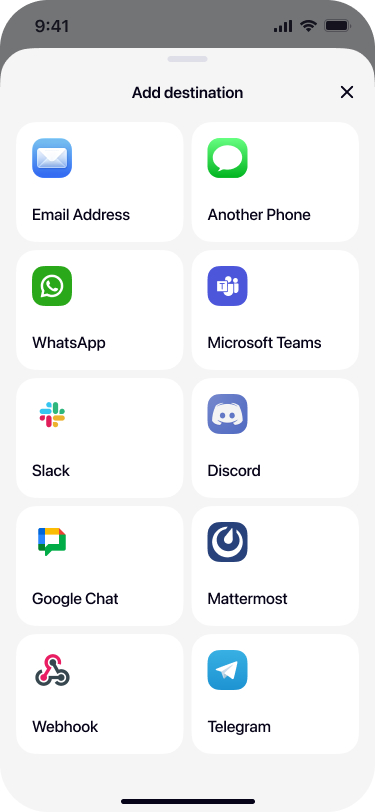
Open Re:Text. Tap the + button on the Destinations screen. In the bottom sheet, tap Telegram.
Open the Re:Text bot
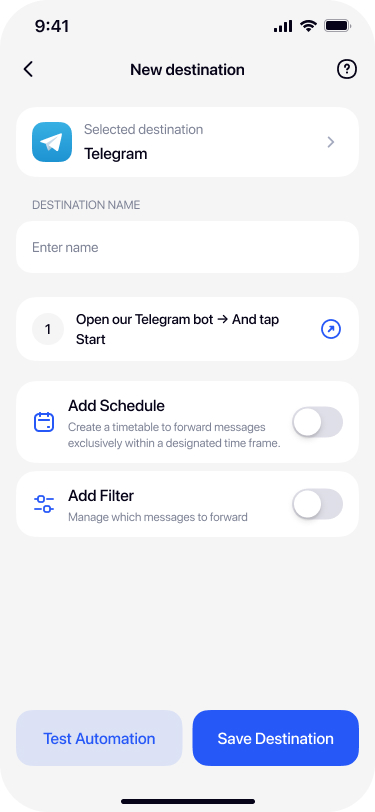
On the destination form, tap the arrow next to "Open our Telegram bot → And tap Start". Your iPhone will open Telegram automatically and take you directly to @retext_sms_forwarder_bot.
Send /start in the bot
Telegram opens the Re:Text bot chat. Tap the Start button (or send /start). The bot responds instantly:
SMS from SMS Forwarder — Re:Text will now be forwarded to this chat. You can head back to the app.
That's the confirmation. Your Telegram account is now linked to Re:Text.
Return to Re:Text and save
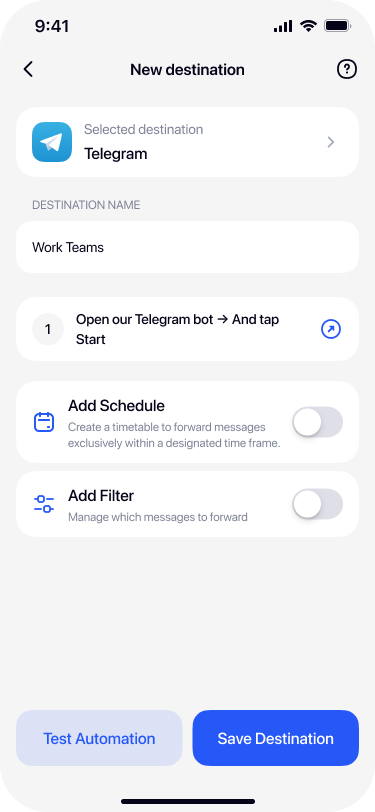
Switch back to the Re:Text app. Enter a name for your destination (e.g. "Personal Telegram" or "SMS Backup"), then tap Save Destination.
Optionally, before saving, you can enable Add Schedule or Add Filter to control which SMS gets forwarded.
What forwarded SMS looks like in Telegram
Each SMS arrives in your chat with @retext_sms_forwarder_bot as a normal Telegram message. You'll see the sender, the message content, and the exact time it was received on your iPhone. Because it's Telegram, you can:
- Search across all forwarded SMS history
- Copy verification codes with a single tap
- Pin important messages
- Forward them further to friends or other chats
- Access from your desktop, tablet, or web browser
Privacy: what we see and don't see
Re:Text does not store, log, or read your SMS content. Messages are handled securely as they pass from your iPhone through our infrastructure to the Telegram Bot API. Your unique Telegram user ID ensures only you receive messages in your bot chat — nobody else can access them.
Once delivered, SMS content lives inside Telegram, under Telegram's own privacy policy and encryption. Learn more in our complete privacy guide.
Advanced: forward only OTP codes to Telegram
Instead of forwarding every SMS, you can filter to only verification codes:
- When creating or editing the Telegram destination, enable Add Filter.
- Add keyword filters like
code,OTP,verify,login,passcode. - Save.
Now only messages containing those keywords will forward to Telegram. Marketing SMS and personal texts stay on your phone only.
Advanced: schedule Telegram forwarding
You might want SMS forwarding only during work hours or only on certain days. Use Add Schedule:
- Select the days of the week (Mo–Su toggles)
- Set start and end time (e.g. 9:00 AM – 6:00 PM)
- Or leave "All Day" enabled
Outside the schedule window, SMS won't be forwarded to Telegram (but they still arrive normally on your iPhone).
What about forwarding to a Telegram group or channel?
The one-tap setup with our official bot forwards to your private chat with the bot. To forward to a group, channel, or another chat, you'll need the more advanced Webhook destination with the Telegram Bot API directly.
See our guide: How to forward SMS to any webhook or API — it includes a full section on setting up your own Telegram bot with BotFather for group forwarding.
Troubleshooting
The bot doesn't respond to /start
Make sure you're chatting with the official bot: @retext_sms_forwarder_bot. Beware of copycat bots with similar names. If the correct bot isn't responding, check your Telegram internet connection and try again.
I sent /start but SMS aren't arriving
Confirm the destination is enabled in Re:Text. Send a test SMS to your iPhone from a friend or another device. If nothing arrives after a minute, delete the destination in Re:Text and set it up again from scratch.
I changed Telegram accounts — how do I reconnect?
Delete the Telegram destination in Re:Text. Log into your new Telegram account. Then set up the Telegram destination again from Re:Text and send /start from the new account.
Can I have multiple Telegram destinations?
You can set up multiple Telegram destinations pointing to the same account, each with different filters (e.g. one for OTP codes only, one for banking SMS). Requires Premium.
Frequently asked questions
Do I need to create my own Telegram bot with BotFather?+
No. Re:Text uses an official pre-configured bot (@retext_sms_forwarder_bot) that connects you in one tap. You don't need to create anything with BotFather, get a bot token, or look up chat IDs.
Where do forwarded SMS arrive in Telegram?+
SMS arrive directly in your private chat with the Re:Text bot (@retext_sms_forwarder_bot). Only you can see them — nobody else has access to your bot chat.
Can I forward to a Telegram group or channel?+
The one-tap setup forwards to your private chat. For group or channel forwarding, use the Webhook destination with the Telegram Bot API. See our webhook guide for setup.
Is my SMS content stored on the Re:Text servers?+
No. Re:Text does not store, log, or read your SMS content. Messages pass through securely to reach the Telegram Bot API and are delivered to your bot chat.
What happens if I lose my Telegram account?+
If you lose access to your Telegram, reinstall Telegram, reconnect the Re:Text bot with /start, and reconnect the destination in the Re:Text app. Your setup will resume.
Does this work with Telegram Premium?+
Yes. Re:Text works with all Telegram accounts — free and Premium. No special features required on the Telegram side.
Will forwarded SMS trigger notifications on all my Telegram devices?+
Yes, by default. You can mute the Re:Text bot chat in Telegram if you don't want notifications on specific devices — the messages will still arrive, just silently.
Does forwarding work when my iPhone is off?+
No. Your iPhone must be powered on and able to receive SMS from your carrier for forwarding to work. Don't rely on Re:Text for emergency messages.
Is Re:Text's Telegram bot free to use?+
Yes. The Telegram destination works with the free Re:Text tier (1 destination). Premium unlocks unlimited destinations if you want to forward to multiple places at once.
Ready to forward your first SMS to Telegram?
30-second setup. Free forever with 1 destination. No BotFather required.
Download on the App Store