To forward iPhone SMS to Microsoft Teams: (1) In Teams, open the target channel → ... → Connectors (or Workflows) → add Incoming Webhook → copy the URL. (2) In Re:Text, tap "+" and select Microsoft Teams, paste the URL, name the destination, test, and save. Total time: about 5 minutes.
Microsoft Teams is the workplace hub for hundreds of thousands of organizations. Forwarding SMS from your iPhone into a Teams channel lets your whole department see incoming customer messages, on-call alerts, delivery notifications, or shared verification codes.
What you'll need
- iPhone with iOS 15+
- Re:Text SMS Forwarder installed
- Microsoft Teams workspace with permission to add connectors to a channel
- Target channel (public or private) to receive SMS
- ~5 minutes
Step 1: Create a Microsoft Teams Incoming Webhook
Option A: Classic Incoming Webhook (simplest)
- Open Microsoft Teams (desktop or web).
- Navigate to the channel where SMS should appear.
- Click the ... menu next to the channel name → Connectors (or Manage channel → Connectors).
- Search for Incoming Webhook and click Configure.
- Name the webhook (e.g. "Re:Text SMS Forwarder") and optionally upload an icon.
- Click Create.
- Copy the Webhook URL Teams generates. It looks like:
https://outlook.office.com/webhook/... - Click Done.
Option B: Power Automate Workflow (recommended for new setups)
- Open the target channel in Teams.
- Click Workflows in the channel toolbar or the ... menu.
- Select the template "Post to a channel when a webhook request is received".
- Sign in with your Microsoft account and confirm connections.
- Select the target team and channel.
- Copy the HTTP POST URL that Power Automate generates.
Step 2: Add Teams as a destination in Re:Text
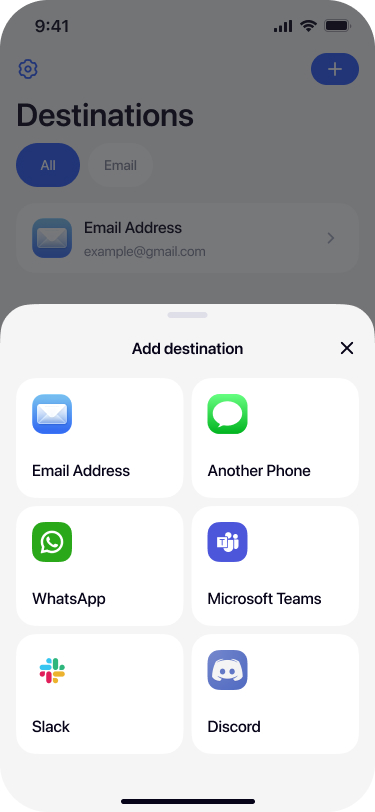
Select Microsoft Teams from destinations
Open Re:Text on your iPhone. Tap + and select Microsoft Teams.
Name the destination
Give it a descriptive name — for example #Sales Channel, DevOps Alerts, or the specific team+channel.
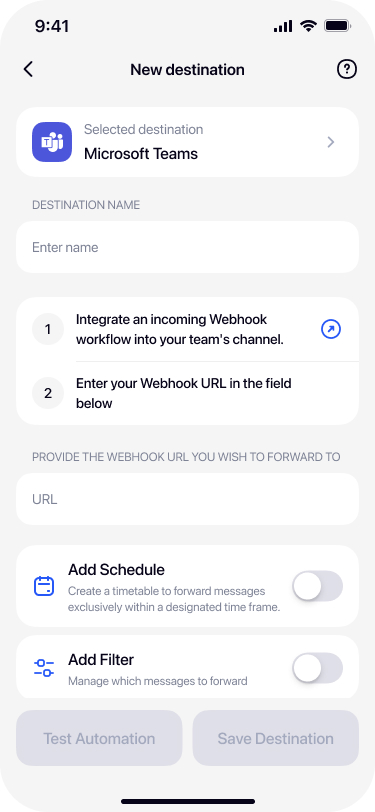
Paste the Teams webhook URL
Paste the URL you copied from Teams (or Power Automate) into the Webhook URL field.
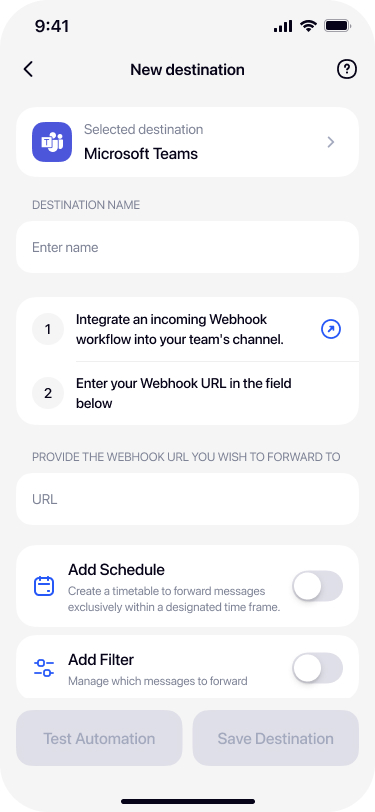
Test and save
Tap Test Automation — a test message should appear in your Teams channel within seconds. Once confirmed, tap Save Destination.
Advanced: multiple Teams destinations
With Re:Text Premium, you can set up multiple Teams destinations for different scenarios:
- Customer SMS → #customer-support channel — filter by sender ID.
- 2FA codes → #it-shared-access private channel — filter by keywords.
- Delivery notifications → #logistics — filter by carrier shortcode.
- On-call alerts → #ops-oncall — filter by keyword "ALERT" or "DOWN".
Troubleshooting
Webhook returns 404
Most likely the classic connector was deprecated by Microsoft in your tenant. Set up a new webhook using Power Automate Workflows instead.
Messages don't appear in channel
Verify: (1) the webhook is enabled in Teams, (2) the destination is toggled ON in Re:Text, (3) the URL is copied correctly with no trailing spaces.
Admin has blocked webhook connectors
Some organizations disable Incoming Webhooks for security. Ask your Teams admin to enable them, or switch to Power Automate Workflows (which use different permissions).
Frequently asked questions
Do I need admin rights in Teams?+
You need permission to add connectors to the target channel. In most organizations, channel owners and admins can add Incoming Webhooks. If not, ask your Teams admin.
Classic Connectors vs Workflows — which should I use?+
Microsoft is deprecating classic Office 365 Connectors in favor of Power Automate Workflows. Both work with Re:Text. Use Workflows for new setups to future-proof.
Can I forward to a Teams private channel?+
Yes. Add the webhook to a private channel and paste the URL into Re:Text. Only channel members will see the messages.
Does this work with Teams Free?+
Yes. Both free and paid Teams tiers support Incoming Webhooks.
Are there rate limits?+
Teams webhooks have moderate rate limits (about 4 requests per second per webhook). For high-volume SMS forwarding, distribute across multiple webhooks or apply filters.
Is SMS content stored in Teams?+
Yes. Forwarded SMS become messages in your Teams channel, stored under your organization's Microsoft 365 data retention policies.
Bring iPhone SMS into Microsoft Teams.
Free forever with 1 destination. Enterprise-ready.
Download on the App Store