There are two methods to forward SMS from iPhone to another phone. Method 1: If the destination is an iPhone signed into the same Apple ID, use iOS's built-in Text Message Forwarding (Settings → Messages). Method 2: For any other phone (different Apple ID, Android, or third-party number), use Re:Text with iOS Shortcuts Automation. Both methods take about 5 minutes.
"Forward my iPhone SMS to another phone" is one of the most common iPhone questions, and the answer depends on which phone. The setup is very different for another Apple device on your Apple ID versus a completely separate phone (Android, work phone, family member).
This guide covers both approaches — the built-in Apple option and the more flexible Re:Text setup.
Which method should I use?
Method 1: Same Apple ID → iOS Text Message Forwarding
Use if: the destination is another iPhone, iPad, or Mac signed into your Apple ID.
Pros: Built into iOS, free, requires no third-party app.
Cons: Only works with your own Apple devices — not another person's phone, Android, or work phone.
Method 2: Any phone → Re:Text
Use if: the destination is any phone number — different Apple ID, Android, work phone, family member, or shared number.
Pros: Works with any phone, supports filters and schedules, forwards as regular SMS.
Cons: Requires iOS Shortcuts Automation setup (~5 min one-time).
Method 1: Same Apple ID (iOS Text Message Forwarding)
Apple's built-in feature is the easiest option when it applies. It syncs SMS across all your Apple devices signed into the same Apple ID.
How to enable it
- On your iPhone, open Settings → Messages.
- Scroll down to Text Message Forwarding.
- Enable the toggle next to each device you want SMS to appear on (iPad, Mac, another iPhone).
- iOS will show a verification code on the destination device. Enter it on your iPhone.
- Done. SMS will now sync to all enabled devices in real time.
Method 2: Any phone (using Re:Text)
For destinations that aren't on the same Apple ID — a family member's phone, an Android device, a work phone with a different Apple ID — you need a proper SMS forwarding app. Re:Text does this with iOS Shortcuts Automation working in the background.
What you'll need
- iPhone (iOS 15 or later)
- Re:Text SMS Forwarder installed
- The destination phone number in international format
- ~5 minutes
Step-by-step setup
Add "Another Phone" as a destination
Open Re:Text. Tap + on the Destinations screen. In the bottom sheet, tap Another Phone.
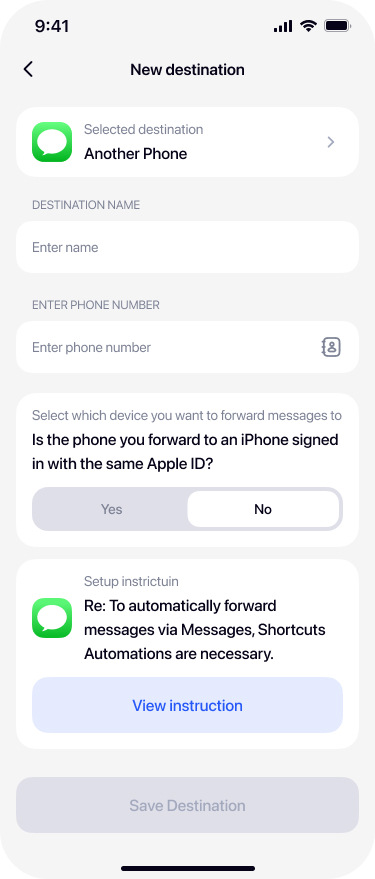
Name your destination
Give it a memorable name — for example Work Phone, Family Backup, or the person's name.
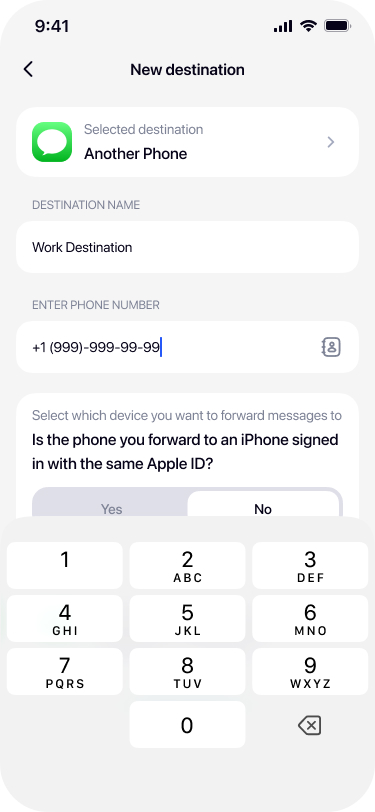
Enter the phone number
Type the destination phone number in international format (e.g. +1 555 123 4567). You can also tap the contact icon to pick from your Contacts.
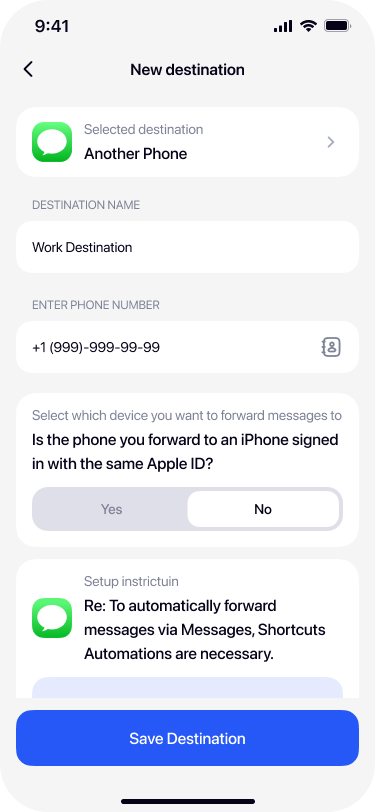
Answer the "same Apple ID?" question
Re:Text asks whether the destination phone is an iPhone signed into the same Apple ID.
- Tap Yes if it's your own iPhone/iPad/Mac — you'll get a tutorial for iOS Text Message Forwarding (Method 1 above).
- Tap No if it's any other phone — proceed with Shortcuts Automation setup.

Follow the in-app Shortcuts Automation guide
If you selected No, tap View instruction for the guided setup. This walks you through creating an iOS Shortcuts Automation that fires when SMS arrive — enabling background forwarding without manual taps.
Save and test
Tap Save Destination. Ask a friend to send you a test SMS — it should appear on the destination phone within seconds.
Advanced: filters and schedules
Both methods (built-in and Re:Text) forward everything by default, but Re:Text adds control:
- Filter by keyword — forward only verification codes, or only bank alerts.
- Filter by sender — forward only messages from your bank's shortcode.
- Schedule — forward only during work hours, or only on weekends.
Troubleshooting
Same Apple ID — messages aren't syncing
Sign both devices into the same Apple ID. Check that iMessage and Text Message Forwarding are both enabled. Restart Messages on both devices.
Different device — SMS aren't arriving
Verify: (1) the destination phone number is correct with country code, (2) the destination phone has SMS capability, (3) Shortcuts Automation is enabled in the iPhone Shortcuts app, (4) the Re:Text destination toggle is ON.
Carrier charges are appearing
Forwarding to another phone via SMS uses your carrier's SMS billing. If cost is a concern, forward to an app-based destination like Email, WhatsApp, or Telegram instead.
Frequently asked questions
Can I forward SMS from iPhone to Android?+
Yes. Re:Text forwards SMS to any phone number — iPhone or Android — as regular SMS via iOS Shortcuts Automation.
Can I forward between two iPhones with the same Apple ID?+
Yes. This is Apple's built-in Text Message Forwarding feature in Settings → Messages. Re:Text guides you through enabling it.
Does forwarding cost money?+
Forwarding via Method 2 (Re:Text) uses iOS Messages, which typically bills as regular SMS to the destination number. Check with your carrier for SMS rates. Method 1 (Apple's built-in) is free.
Can I forward to multiple phones at once?+
Yes with Re:Text Premium — set up multiple "Another Phone" destinations, each with different phone numbers and filters.
Can I forward MMS or picture messages?+
Re:Text forwards SMS text content. Picture messages and multimedia are not supported due to iOS Shortcuts limitations.
Will the sender see the forwarded message came from my iPhone?+
The forwarded SMS is sent from your iPhone's number to the destination phone. The recipient sees your number as the sender, along with the original SMS content.
Forward iPhone SMS to any phone.
Free forever with 1 destination. Setup takes 5 minutes.
Download on the App Store